 Central de Ajuda


User Account Control (UAC) is a Windows 11 security feature that asks for authorization before certain programs or users make changes that require administrative privileges.
Although it is important for system security, UAC can be inconvenient in some situations. Old programs, administrative tools, scripts or applications that need to perform certain tasks automatically may trigger frequent privilege elevation prompts.
That is why a common search among users and technicians is:
“How do I turn off UAC in Windows 11?”
In this article, you will see how UAC works, how to reduce or turn off its notifications, the consequences of this change and the alternatives to consider before switching off this security mechanism completely.
What is UAC in Windows 11? #
UAC stands for User Account Control (in Portuguese, Controle de Conta de Usuário).
It was created to prevent administrative changes from being made silently by apps or users.
When an action requires elevated privileges, Windows may show a prompt similar to:
“Do you want to allow this app to make changes to your device?”
The user can then authorize or cancel the operation.
The goal is to prevent a malicious program from making important changes to the system without the user being informed.
Is UAC an antivirus? #
No. UAC does not replace Microsoft Defender or any other antivirus.
Its function is to control privilege elevation.
This means that:
- Defender helps detect threats;
- SmartScreen works with reputation and protection against potentially dangerous content;
- UAC asks for authorization for certain administrative changes.
These mechanisms work together.
So turning off UAC does not mean turning off Microsoft Defender.
How to turn off UAC in Windows 11 #
Windows 11 lets you change the User Account Control notification level.
The simplest procedure is to use the Control Panel.
Step 1 — Open the Control Panel #
Press:
Windows + R
Type:
control
Press Enter.
Step 2 — Open the user account settings #
In the Control Panel, select:
User Accounts
Then, again:
User Accounts
Step 3 — Open the UAC settings #
Click:
Change User Account Control settings
A window with a slider will appear.
This slider determines when Windows should ask for authorization.
What are the UAC levels? #
Windows offers different notification levels.
In general, the lower the level chosen, the fewer prompts will be shown.
Always notify #
This is the most restrictive level.
Windows asks for authorization whenever apps or users try to make administrative changes.
It is appropriate for environments where change control is a priority.
Notify me only when apps try to make changes #
This is a common setting.
Windows asks for authorization when an app tries to make an administrative change, but not necessarily when the user changes certain settings.
Notify me only when apps try to make changes (do not dim my desktop) #
Behaves similarly to the previous level, but does not use the so-called secure desktop during the prompt.
Never notify #
This is the setting usually associated with “turning off UAC”.
At this level, Windows no longer shows User Account Control notifications in the same way.
This setting reduces the protection provided by UAC and should not be used without a specific reason.
How to set UAC to the minimum level #
If the goal is to reduce the number of prompts without necessarily turning off the mechanism completely, move the slider to:
Never notify
Then click:
OK
Windows may ask for administrative confirmation.
Depending on the change and the system version, you may need to restart the computer for certain behaviors to take effect.
Is it safe to turn off UAC? #
It is not recommended to turn off UAC permanently without need.
UAC adds a layer of protection against unauthorized administrative changes. When this protection is reduced or turned off, a program running with the appropriate privileges may be able to change the system without the user receiving the same confirmation.
This can increase the impact of a malware infection or a malicious app. So, if the problem is caused by a single program, first look for a solution specific to that app.
Why does a program ask for authorization every time it runs? #
This usually happens because the program needs administrative privileges. Some applications need to access protected areas of the system, modify services, write to certain directories or change settings that require elevation.
Old programs (or versions) are especially prone to this behavior. Before turning off UAC, check whether the software has an updated version compatible with Windows 11.
How to run a program as administrator #
An alternative to switching off UAC is to run only the program you need with administrative privileges.
Right-click the app and select:
Run as administrator
Windows will show the UAC prompt.
If you trust the app, confirm.
This approach keeps UAC active for all other programs.
How to make a program always run as administrator #
If a certain app constantly needs elevated privileges, you can configure its compatibility settings.
Right-click the executable or shortcut and select:
Properties
Then:
Compatibility
Check:
Run this program as an administrator
Click:
Apply → OK
The next time it runs, the app will still request the corresponding elevation, but you will not need to set this option manually each time.
Important #
This does not remove the UAC security mechanism.
The app will keep running with elevated privileges subject to the applicable security policy.
UAC and “This app has been blocked for your protection” #
It is important to distinguish two situations.
UAC prompt #
A message similar to:
“Do you want to allow this app to make changes to your device?”
In this case, Windows is asking for authorization for a privilege elevation.
Blocked app #
Messages such as:
“This app has been blocked for your protection”
may be related to other Windows security mechanisms or policies.
So turning off UAC is not necessarily a solution for apps blocked by Windows. If that is the problem, investigate SmartScreen, Smart App Control, Defender and security policies.
How to turn off UAC through the Windows Registry #
Administrators can find UAC settings in the Windows Registry.
The related settings are in:
HKEY_LOCAL_MACHINE\SOFTWARE\Microsoft\Windows\CurrentVersion\Policies\System
Among the values used by UAC is:
EnableLUA
Incorrect changes to the Registry can cause operating or security problems.
So we do not recommend changing the Registry just to get rid of UAC prompts when there is an appropriate setting in the Windows interface.
Before making any change to the Registry:
- make a backup;
- confirm exactly which setting will be changed;
- have administrative access;
- document the original value.
In corporate environments, prefer centralized management mechanisms instead of changing computers individually.
How to check whether UAC is on #
A simple way is to open:
Control Panel → User Accounts → Change User Account Control settings
The selected level will be shown on the slider.
You can also check administrative settings related to UAC through Windows security policies.
What happens when UAC is turned off? #
When UAC is significantly reduced or turned off, Windows behaves differently regarding elevation prompts.
Possible effects include:
- fewer confirmation prompts;
- less user intervention during installations;
- easier running of certain administrative tools;
- one less layer of protection against unauthorized changes.
The last point is the most important.
Fewer prompts do not necessarily mean better performance.
In most cases, turning off UAC does not provide a significant performance gain on the computer.
Does turning off UAC make Windows faster? #
Usually, there is no relevant performance gain that justifies turning off UAC.
UAC was not designed as a feature that consumes a significant amount of computer resources.
If Windows 11 is slow, there are much more likely causes, such as:
- too many programs starting with the system;
- little free space;
- slow storage;
- lack of memory;
- processes consuming CPU;
- drivers;
- updates;
- hardware problems.
Turning off UAC to try to speed up the computer is not a recommended measure.
UAC on corporate computers #
In companies, UAC is even more important.
Corporate computers may run:
- administrative systems;
- management software;
- support tools;
- monitoring agents;
- scripts;
- remote access tools;
- applications developed in-house.
If an app requires administrative privileges, the ideal is to determine exactly which operation requires elevation.
Instead of turning off UAC on all computers, the IT team can evaluate:
- updating the app;
- setting permissions correctly;
- group policies;
- centralized management;
- running services with the appropriate permissions;
- the software’s compatibility with Windows 11.
This approach is much safer in environments with many devices.
UAC and remote access #
UAC can also interfere with remote support operations. During a remote session, some administrative actions may require privilege elevation.
Depending on the remote access tool and the Windows configuration, the technician may run into limitations when trying to:
- install programs;
- change system settings;
- run administrative tools;
- install services;
- change certain protected settings.
In these cases, the problem should not automatically be blamed on UAC.
You also need to check:
- account permissions;
- remote access service configuration;
- corporate policies;
- administrative privileges;
- Windows settings;
- security blocks.
A remote access solution built for technical support should correctly handle operations that require elevated privileges, reducing the need for manual procedures on the user’s computer.
How to turn UAC back on #
If you reduced or turned off UAC to run a test, it is recommended to restore an appropriate setting afterwards.
Go to:
Control Panel → User Accounts → Change User Account Control settings
Move the slider to a level recommended for your environment.
For most personal computers, an intermediate setting is enough to keep protection without excessive prompts.
Click:
OK
What to do before turning off UAC? #
If a program is having problems, follow this sequence:
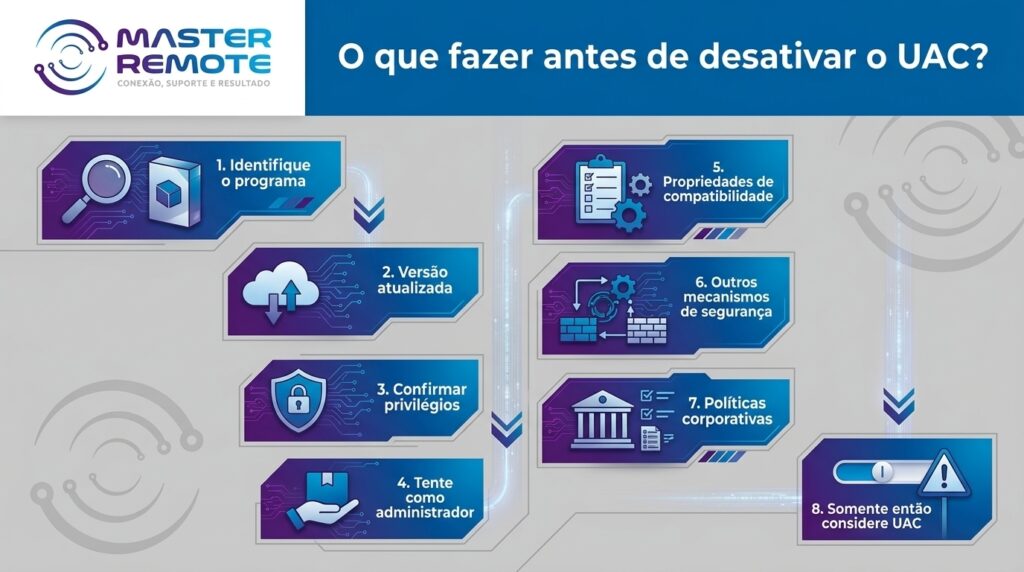
This sequence avoids an unnecessary security change.
Frequently asked questions #
How do I turn off UAC permanently in Windows 11? #
Open Control Panel → User Accounts → Change User Account Control settings and move the slider to Never notify. However, this setting reduces Windows protection and is not recommended for permanent use without a specific reason.
What happens if I turn off UAC? #
Windows will reduce or stop showing certain privilege elevation prompts. This may make it easier to run some programs, but it also removes a layer of protection against unauthorized administrative changes.
Does turning off UAC turn off Windows Defender? #
No. UAC and Microsoft Defender are different mechanisms.
How do I run just one program as administrator? #
Right-click the app and select Run as administrator. This keeps UAC active for all other apps.
Does UAC slow down Windows 11? #
Usually not. Turning off UAC is not a recommended way to improve computer performance.
Is UAC responsible for the message “This app has been blocked for your protection”? #
Not necessarily. This message may be related to other security mechanisms, such as SmartScreen, Smart App Control or security policies.
In short… #
User Account Control (UAC) is an important Windows 11 security layer. It controls privilege elevation prompts and helps prevent administrative changes from being made silently.
Although you can reduce or turn off its notifications, switching off UAC completely should not be the first solution to program problems.
If an app constantly asks for authorization, first investigate whether it really needs administrative privileges, whether there is an updated version or whether a specific setting can solve the problem.
In corporate environments, this recommendation is even more important: instead of turning off UAC on many computers, identify the cause and apply an appropriate, controlled policy.
This way, you can keep Windows 11 working for the software you need without giving up an important layer of system protection.
Try Master Remote free for 7 days. Professional remote access with 7 integrated tools. Download Master Control →
⚠️ Was this article helpful? – If this article did not answer your question or you found outdated information, contact us through the support channels available in the apps, through our Support Center on WhatsApp or by phone: +55 17 2786-0640, option 4, or through your Customer Area.
⚠️ Images and data in this content are for illustration only. The appearance and information may vary depending on the version used.
Enjoyed the article? Check out what’s new on our WEBSITE, share the article with your friends and follow Master Remote on LinkedIn, YouTube, Instagram and Facebook. Also, explore other articles on the side and stay up to date with the latest news on customer support technology and cybersecurity.
YOU MAY ALSO BE INTERESTED IN: