 Central de Ajuda


Because of its nature and the functions it performs in the operating system, the remote access agent must be installed using an account with administrative privileges, whether on servers or workstations. This is necessary so the agent can correctly install its components and services and operate with the permission levels required for remote support.
In environments where users have accounts without administrative privileges (standard accounts), actions that require elevation trigger Windows UAC (User Account Control), which asks for administrative credentials. This behavior is a native protection of the operating system and is not a failure of the agent.
PART 1: During Installation #
During installation, Windows requires elevated privileges to register services in the system, copy files to protected directories and apply security settings.
1. Understanding the UAC Message During Installation #
When Windows shows the UAC warning saying the program’s publisher has been verified and asks for an administrator password:
- Verified publisher: means Windows identified the valid digital signature of Master Remote as the software publisher.
- Credential request: indicates that the user currently signed in does not have administrative privileges to complete the installation on their own.
2. Installation Behavior Matrix #
| User situation | Expected behavior | Recommended guidance |
| User is an administrator | A UAC screen asks for confirmation (Yes / No). | Confirm the elevation to continue the installation. |
| User is standard | Windows asks for an administrator’s username and password. | Ask an authorized administrator to enter the credentials or perform the installation. |
3. Recommended Installation Procedure #
- Identify whether the computer is managed by a domain, corporate policy or management tool (MDM/RMM).
- Confirm that the signed-in user has administrative privileges to perform the installation.
- Run the installer and complete the process with the requested privileges.
- When finished, check that the agent service started correctly and that the device appears in the remote access platform panel.
PART 2: During Use (Execution and Remote Support) #
Once installed, the agent needs to run with proper permissions so the remote technician can interact with the customer’s operating system, especially for administrative tasks.
1. Need for Elevated Privileges at Runtime #
Running the agent only in the context of a standard user (without elevation) limits what technical support can do. The agent needs elevated privileges during use to:
- Interact with protected Windows components and folders.
- Assist and support users in elevated sessions.
- Apply system settings, install drivers or change the registry during support.
2. Setting the Executable to Always Run as Administrator #
If the agent needs to be started manually with elevated privileges during use:
- Right-click the agent’s executable file or shortcut.
- Select Properties → Compatibility tab.
- Check the “Run this program as an administrator” option.
- Click Apply and OK.
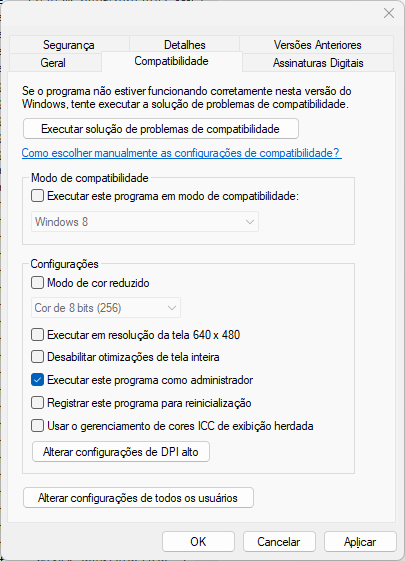
This setting makes Windows require UAC confirmation/password whenever the app is opened. Just click YES.
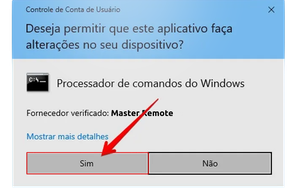
NOTE: the window may look different depending on the Windows version.
If nothing works #
As a last resort, if none of the previous steps work and it is still impossible to install or operate the agent, you can temporarily turn off UAC (User Account Control) directly in the Windows Control Panel settings.
If needed, see HERE how to turn off UAC
Try Master Remote free for 7 days. Professional remote access with 7 integrated tools. Download Master Control →
⚠️ Was this article helpful? – If this article did not answer your question or you found outdated information, contact us through the support channels available in the apps, through our Support Center on WhatsApp or by phone: +55 17 2786-0640, option 4, or through your Customer Area.
⚠️ Images and data in this content are for illustration only. The appearance and information may vary depending on the version used.
Enjoyed the article? Check out what’s new on our WEBSITE, share the article with your friends and follow Master Remote on LinkedIn, YouTube, Instagram and Facebook. Also, explore other articles on the side and stay up to date with the latest news on customer support technology and cybersecurity.
YOU MAY ALSO BE INTERESTED IN: