 Central de Ajuda


For a long time, technical support was essentially reactive.
A customer or employee noticed a problem, opened a ticket and waited for someone from IT. The technician then accessed the computer remotely, investigated what had happened, applied a fix and closed the ticket.
The problem with this model is that IT usually starts investigating when the user has already noticed something is wrong. But the endpoint may be providing information long before anyone opens a ticket.
Operating system, updates, hardware, storage, software, connectivity, security, backup, events, usage history and support information are just some of the data that can help understand the state of a machine.
The question is no longer:
- How do I access this device?
It becomes:
- What is this device trying to tell us?
This is where technical support starts turning into an endpoint intelligence operation.
What are your users trying to tell you, even before they complain? #
When people talk about IT monitoring, they often think immediately of CPU, memory, disk space, availability and alerts. These indicators matter. But a truly efficient operation needs more than isolated metrics: it needs context.
That is exactly where Area 7, or the Information Area, of Master Control becomes important.
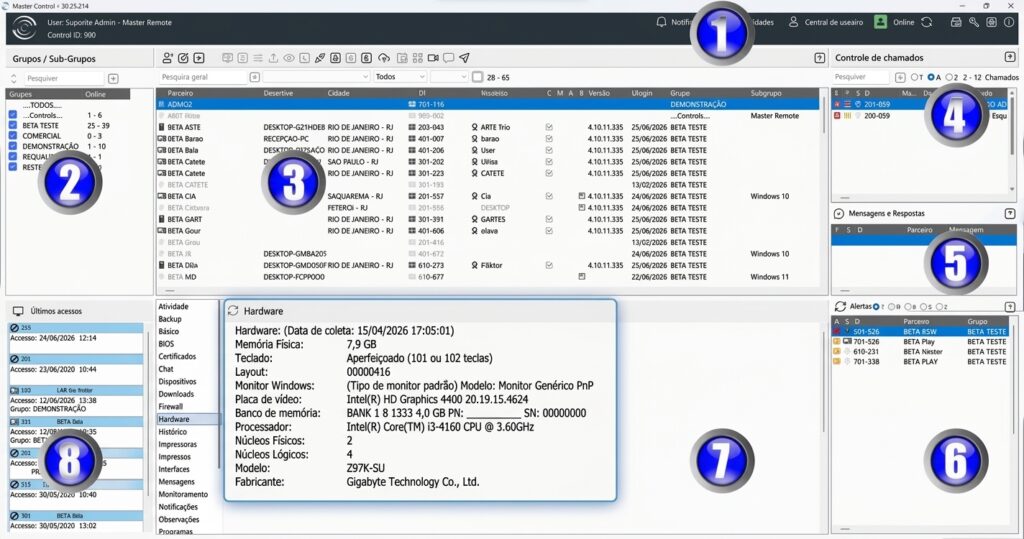
More than a lookup area, it brings together a wide set of information about the endpoint and its environment, giving the IT professional a much more complete view of the device they are monitoring or supporting. And that is what turns Area 7 into a real gold mine of information.
It can help answer questions such as:
- What is on this computer?
- How is it working?
- How is its connection?
- Is it up to date?
- What software is installed?
- What security mechanisms are in place?
- Is the backup in good shape?
- What happened recently?
- Who is using or supporting the device?
- What was done during support?
- Is there information indicating that intervention is needed?
In other words, Master Control does not just show whether the endpoint is online. It helps you understand what is happening on it.
Information is not just for monitoring #
One of the big advantages of this approach is that the information in Area 7 can be useful at different moments of the operation.
Before support #
The technician can check the information available about the device and start the session with initial context.
During support #
The data can help investigate the problem and make decisions while the technician is connected to the endpoint.
After support #
The history and records can help document what happened, identify patterns and make future interventions easier.
This changes the nature of support.
The technician no longer depends solely on what the user can explain and can also rely on technical evidence provided by the environment itself.
What Master Control reveals about your endpoints. #
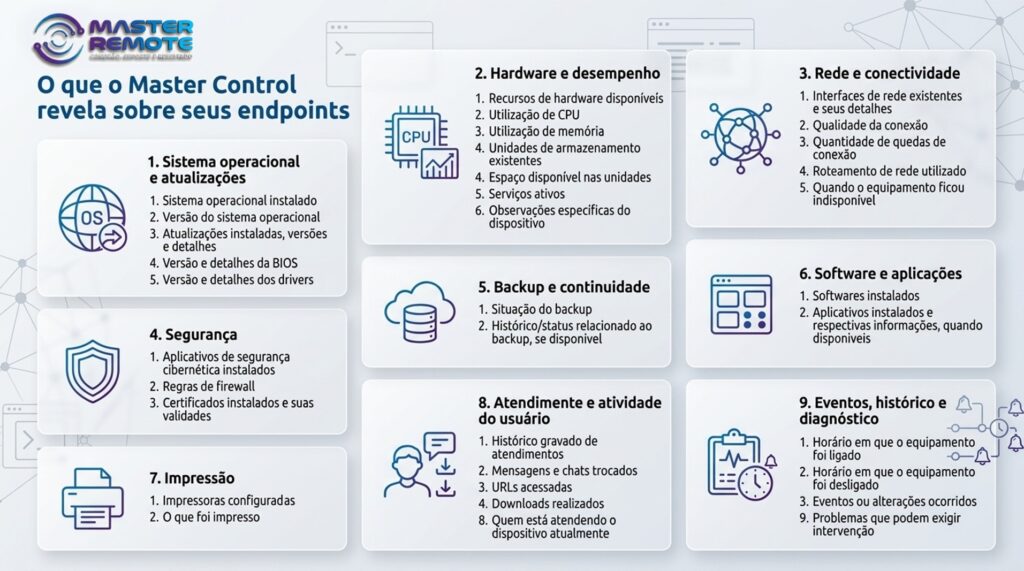
1. Operating system and updates: knowing exactly what is installed #
A problem may be related to the operating system version, an update or even a specific component of the machine. That is why knowing the environment is essential.
Master Control lets you check information such as:
- installed operating system;
- operating system version;
- installed updates;
- update versions and details;
- BIOS version and details;
- driver versions and details.
This information helps the technician understand the real environment of that endpoint, avoiding diagnoses based on assumptions.
One machine may look the same as another to the user. For the IT professional, however, two machines may be on different versions, have different drivers or have received different updates. And that difference can be decisive in finding the cause of a problem.
2. Hardware and performance: understanding the endpoint’s capacity and behavior #
Knowing that a computer is on is not enough. It is important to know how it is working. Master Control provides information about the device’s hardware resources and performance, including:
- available hardware resources;
- CPU usage;
- memory usage;
- existing storage drives;
- available space;
- active services;
- device-specific notes.
Imagine a user reports that the computer is slow.
The question is no longer simply:
- What is the user experiencing?
It becomes:
- What do this endpoint’s indicators show?
Combining this information can guide the investigation and help the technician identify where to look for the cause.
3. Network and connectivity: when the problem is not the computer #
Many problems users perceive as “computer problems” may be related to connectivity. That is why knowing the network environment is essential. Master Control lets you see information such as:
- existing network interfaces and their details;
- connection quality;
- number of connection drops;
- network routing used;
- periods when the device was unavailable.
This information can completely change the direction of a diagnosis.
A user may say:
- The system is slow.
But the data may show the problem is related to the connection. Or:
- The server is not responding.
And the connectivity history may show the endpoint had recurring drops. So the technician stops looking only at the machine and starts analyzing its relationship with the environment.
4. Security: knowing what protects the endpoint #
Security is also part of device intelligence. Master Control lets you check information related to:
- installed cybersecurity apps;
- firewall rules;
- installed certificates;
- certificate validity.
This data can be especially important during technical investigations. A certificate close to expiring, a firewall setting or the absence of a certain security mechanism can be relevant information for the team responsible for the environment.
The question is not just whether there is a security problem. It is knowing the security situation of that endpoint at the moment it is being analyzed.
5. Backup and continuity: knowing whether the data is protected #
In an IT operation, availability and data protection go hand in hand. That is why backup information is also part of this intelligence.
Master Control lets you check the backup status and, when available, information about its history and status.
This adds an important dimension to the diagnosis. Imagine a device with a storage failure. Besides investigating the technical problem, the team needs to know:
- Is there a backup?
- What is the state of that backup?
The information is no longer just a characteristic of the endpoint and becomes part of the business continuity analysis.
6. Software and applications: knowing what really exists on the endpoint #
Another key point is knowing what software is installed. Master Control lets you check the software and apps on the device and their information, when available.
This can help in situations such as:
- investigating incompatibilities;
- identifying versions in use;
- analyzing applications related to a problem;
- surveying the environment before an intervention;
- identifying differences between devices.
Once again, the value lies in combining information. An application on its own may mean nothing. But when related to a certain operating system version, driver or device behavior, it can become an important clue.
7. Printing: much more than knowing which printer is installed #
This is the information that traditionally gets all the attention in Area 7. Master Control lets you check:
- configured printers;
- information about what was printed.
This can be especially useful in printing-related support, but its value does not need to be limited to that scenario. A printer can be part of a larger flow involving the workstation, network, print server, application and user.
So seemingly simple information can gain meaning when analyzed in the context of the environment. Printing is just one piece of this large set of information.
And this is precisely one of the most important changes of perspective:
Area 7 should not be seen only through the individual function of each piece of information, but through the context the whole set provides.
8. Support and activity: what happened during interaction with the endpoint? #
There is also a category of information particularly important for support operations: the support itself. Master Control can gather information related to activity on the device, such as:
- recorded support history;
- messages and chats exchanged;
- URLs visited;
- downloads made;
- identification of who is supporting the device at that moment.
This creates an additional layer of context. The technician is not just looking at the endpoint. They can also check information about the interaction between the support professional and that environment.
This can be important for continuity of support, auditing, follow-up and understanding the history of an incident.
9. Events and history: the endpoint also tells a story #
An endpoint should not be analyzed only by what is happening now. Its history can reveal much more. Master Control lets you obtain information such as:
- when the device was turned on;
- when it was turned off;
- events or changes that occurred.
This data helps build a timeline. And a timeline can be essential to discover what happened before a problem.
For example:
- The user says a problem started in the morning.
The history can help investigate what happened during that period.
- Was there a change?
- An update?
- A period of unavailability?
- A restart?
- A specific event?
The answer may be in the endpoint’s own history.
The real value is in the combination #
It is important to understand that none of this information, on its own, transforms an IT operation. The real value appears when it is combined.
Imagine an endpoint that is running slowly. The technician can analyze:
- Hardware: CPU, memory and storage.
- System: operating system version and updates.
- Software: installed applications.
- Network: connection quality and drops.
- Security: protection apps and firewall.
- History: events, changes and periods of unavailability.
- Support: history of previous interventions.
Suddenly, the problem is no longer simply:
- The computer is slow.
It becomes an investigation based on evidence.
From information to diagnosis #
This is where Area 7 becomes a real gold mine. Not because it simply stores a large amount of information, but because this information can help the IT professional find relationships, form hypotheses, identify patterns and make decisions.
Storage information can gain meaning when related to performance. Network information can explain a failure that seems to be related to the system.
- An update can help explain a change in behavior.
- An event can show what happened before an outage.
- A support history can reveal that a certain problem is not new.
The value lies in being able to connect the dots.
From reactive support to a data-driven operation #
In the traditional model:
- User notices → opens a ticket → technician investigates → technician fixes.
In a data-driven operation:
- Endpoint generates information → team follows it → signals are identified → context is analyzed → technician intervenes.
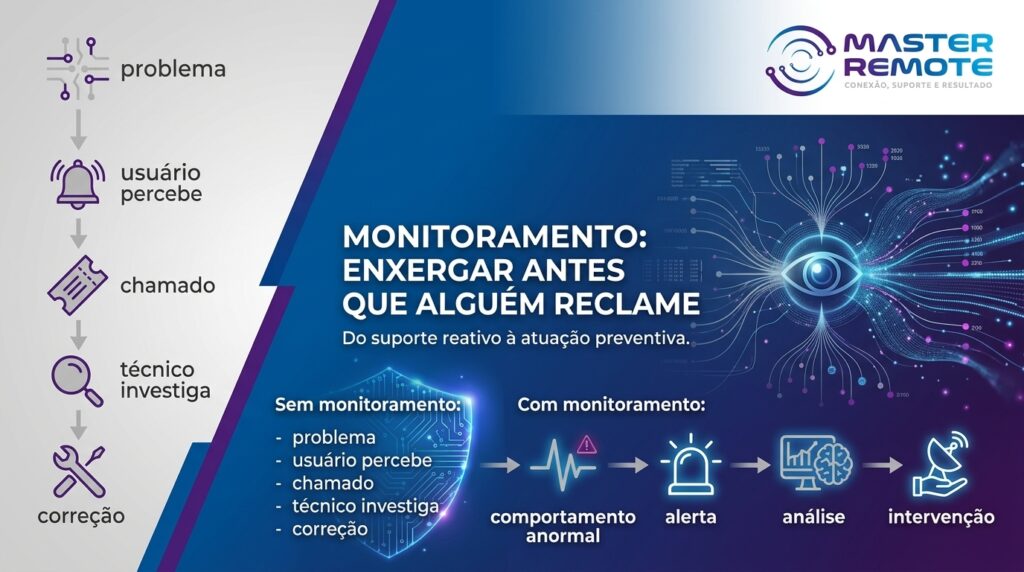
The difference is huge.
Support no longer depends solely on the user’s perception. The professional can rely on technical data to understand the environment. And remote access is no longer just the mechanism used to “get into a computer”. It becomes one of the steps of a larger operation:
- identify → understand → access → diagnose → act → record.
Area 7 as the endpoint intelligence hub #
That is why seeing Area 7 only as an inventory area limits its potential. It brings together information across different dimensions of the endpoint.
Each group provides part of the story. Together, they help build a much more complete view of the device. And the larger the environment, the greater the value of this consolidated view tends to be.
Your user complains. Your endpoint warns you. #
The user notices the problem. But often the endpoint had already been showing signs.
- A connection drop.
- A change.
- An update.
- A drive running out of space.
- A change in performance.
- An event.
- A certificate close to expiring.
- A recurring failure.
- A history showing that the situation has happened before.
The challenge of modern IT is not simply having access to endpoints. It is being able to hear what they are saying.
And that is exactly where a platform like Master Control can turn a huge amount of technical information into context for diagnosis, support and decision-making.
Because, in the end, remote access gets you to the endpoint. But it is the information that helps you understand what is happening when you get there.
Try Master Remote free for 7 days. Professional remote access with 7 integrated tools. Download Master Control →
⚠️ Was this article helpful? – If this article did not answer your question or you found outdated information, contact us through the support channels available in the apps, through our Support Center on WhatsApp or by phone: +55 17 2786-0640, option 4, or through your Customer Area.
⚠️ Images and data in this content are for illustration only. The appearance and information may vary depending on the version used.
Enjoyed the article? Check out what’s new on our WEBSITE, share the article with your friends and follow Master Remote on LinkedIn, YouTube, Instagram and Facebook. Also, explore other articles on the side and stay up to date with the latest news on customer support technology and cybersecurity.
YOU MAY ALSO BE INTERESTED IN: