 Central de Ajuda


In everyday use, login credentials are often stored on devices or browsers, making the login process practically automatic. As a result, many users end up forgetting their passwords, which is usually only noticed when they need to reinstall the system, change computers or access the account on a new device. In these cases, being unable to log in can interrupt access to the system and require password recovery.
In these cases, there are two options to solve the problem:
- Reactivate the user: if the user was deactivated after more than five incorrect login attempts.
- Reset the password: if the user really forgot the password.
Both options can be performed by a system administrator.
It is essential to have more than one administrator user in the system. This ensures that, if one administrator is unavailable, another can take over and manage users.
Even if only one person is currently working with the account, it is recommended to create a second administrator user. This way, in case of a forgotten password or other emergencies, you can use the backup administrator user and keep work going.
For Administrators #
1. Reactivate User:
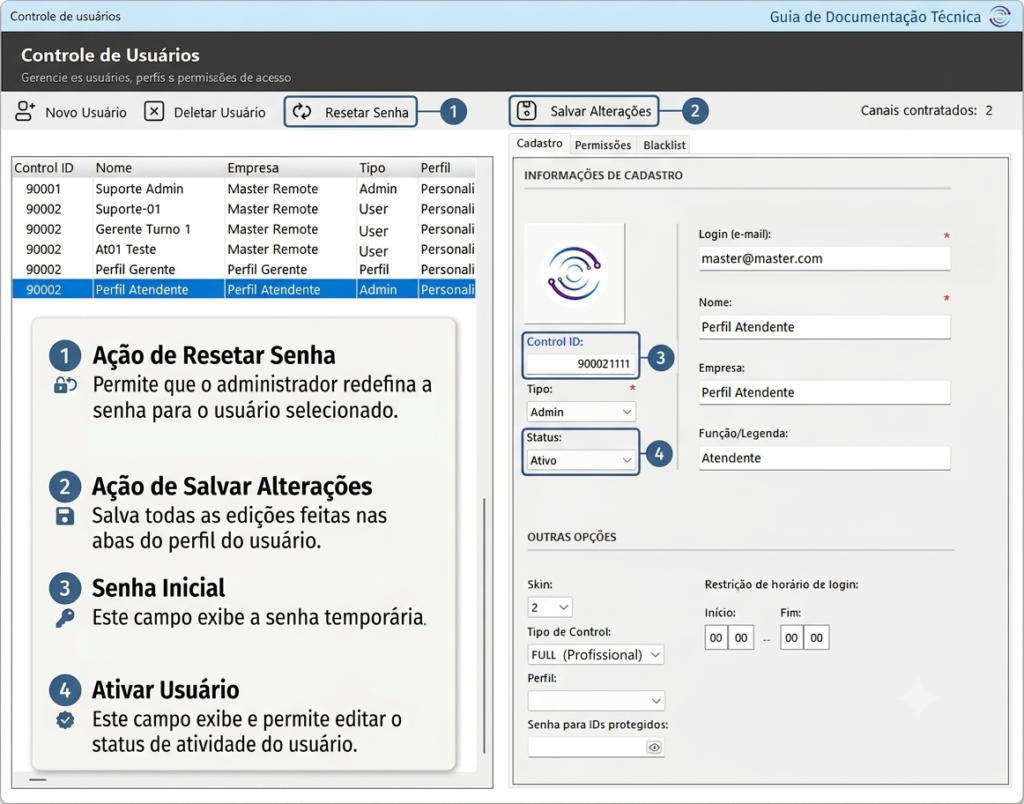
- The administrator must open user registration in settings.
- Check whether the user’s Status is “inactive“, change it back to active and save.
2. Reset Password:
- The administrator must open user registration in settings.
- Select the desired user and click the reset password icon.
- There is no need to save. The reset action itself saves.
- Then give the user their ControlID as the initial password.
- The user will change their own password in Tools> Change password.
3. Forgot the Administrator Password?
- Contact support on WhatsApp at +55 17 2786-0640.
- Support will reset the password and provide the ControlID if needed.
- Support cannot provide the previous password or set a new password directly.
- In installations with many users, it is advisable to have more than one ADMIN.
For Regular Users #
- The initial password of a new user, or after a password reset, is the Control ID, available on the user’s settings page.
- To change the password after logging in, users can change it themselves in TOOLS > CHANGE PASSWORD.
- A regular user cannot reset their own password. Ask the Master Control ADMIN at your company.
Important Notes #
Only customers registered as responsible parties in our system can request a password reset or user activation.
If necessary, ask for the phone numbers of other people to be added, authorizing them to make requests limited to responsible parties, such as department managers.
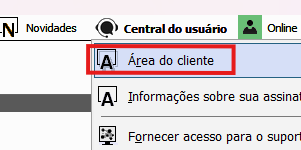
The request must be made necessarily through a ticket in your Customer Area, providing the name, phone numbers and/or emails of the people who should be authorized to make requests on behalf of the responsible party.
Try Master Remote free for 7 days. Professional remote access with 7 integrated tools. Download Master Control →
⚠️ Was this article helpful? – If this article did not answer your question or you found outdated information, contact us through the support channels available in the apps, through our Support Center on WhatsApp or by phone: +55 17 2786-0640, option 4, or through your Customer Area.
⚠️ Images and data in this content are for illustration only. The appearance and information may vary depending on the version used.
Enjoyed the article? Check out what’s new on our WEBSITE, share the article with your friends and follow Master Remote on LinkedIn, YouTube, Instagram and Facebook. Also, explore other articles on the side and stay up to date with the latest news on customer support technology and cybersecurity.
YOU MAY ALSO BE INTERESTED IN: