 Central de Ajuda


Microsoft Edge has a security feature called SmartScreen, which protects users against malicious downloads and dangerous websites. If you trust the file you are downloading, such as Master Remote, and need to allow, adjust or turn off this feature, here is a guide to help you.
Note that SmartScreen and Windows Defender are separate security tools, although they are connected. Many users confuse SmartScreen protection with Defender protection, especially when they receive security warnings. There is a common belief that turning off Defender also turns off SmartScreen, but this is not true. In addition, Defender cannot be completely turned off.
Download Blocked #
When SmartScreen blocks a download, you may see different warning messages depending on your operating system version. Below you will see examples similar to the following image:
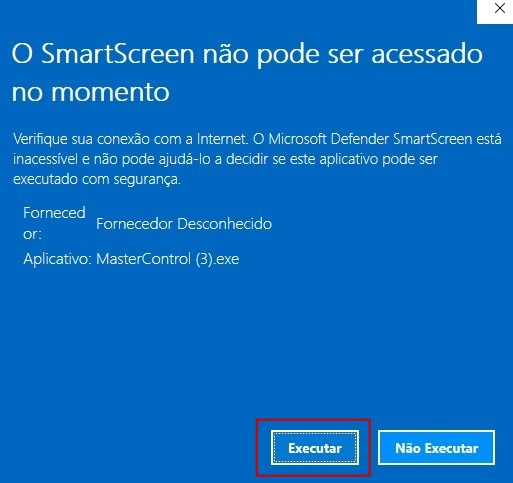
Remember that after downloading the file that was initially blocked, it is recommended to turn the feature back on, as SmartScreen really helps protect the system while you browse the web with Edge.
Turning Off SmartScreen in Microsoft Edge #
It is not recommended to turn off SmartScreen completely, as it helps prevent malicious apps or files from getting in. However, if you want to turn it off only in Microsoft’s browser, follow these steps:
- Open “Microsoft Edge” and click the three dots in the upper-right corner.
- Scroll down to the bottom of the menu and click “Settings“.
- Scroll to the bottom of the Settings screen and click “View Advanced Settings“.
- Turn off the “Help protect me from malicious sites and downloads with Windows Defender SmartScreen” option.
Changing SmartScreen in Windows Defender #
In “Windows Defender”, you can also set SmartScreen so the browser warns you when you are about to download a suspicious file (instead of blocking it automatically). Follow these steps:
- Open the “Windows Defender Security Center” (in the Windows Control Panel).
- Click “App & browser control”.
- Choose the “Warn” option (usually the second one) for the SmartScreen feature for “Microsoft Edge“.
Enjoyed the article? Check out what’s new on our WEBSITE, share the article with your friends and follow Master Remote on LinkedIn, YouTube, Instagram and Facebook. Also, explore other articles on the side and stay up to date with the latest news on customer support technology and cybersecurity.