 Central de Ajuda


Overview #
The AI Smart Analysis Report is a technical document generated automatically by Master Control from the information collected on the monitored computer. Its goal is to turn technical data into a structured diagnosis, making it possible to identify operational risks, security vulnerabilities, configuration problems and improvement opportunities quickly and objectively.
Using analysis techniques based on Artificial Intelligence, the system interprets thousands of pieces of information from the operating system, hardware inventory, installed software, Windows events, security settings and other indicators, consolidating this data into an easy-to-read report.
The result is a document that helps IT professionals make decisions, prioritizing problems by impact and providing practical recommendations to fix them.
Objectives #
The Smart Analysis Report has the following objectives:
- Automate the technical diagnosis of computers;
- Identify security risks;
- Detect obsolete or unsupported software;
- Assess the health of the operating system;
- Support preventive maintenance;
- Support technical audits;
- Reduce the time spent manually analyzing equipment;
- Standardize technical assessments across the whole infrastructure.
How the Analysis Works #
The report is generated automatically, using data collected directly from the device. Although the report can be generated for machines that are turned off, based on Master Control data, we recommend that the device be online to ensure maximum accuracy and fidelity to current conditions. During this process, several components of the computing environment are analyzed, including:
- Operating system;
- Hardware;
- Storage;
- Network;
- Digital certificates;
- Firewall;
- Antivirus;
- Events logged by Windows;
- Installed applications;
- Available updates;
- Unsupported software;
- Security settings.
The Artificial Intelligence interprets this data using technical rules and classification models, correlating information to identify possible problems and their criticality. Instead of presenting only raw data, the system produces objective conclusions and recommendations to make decisions easier.
Report Structure #
Overall Health Index #
At the very beginning, an overall indicator represents the computer’s current condition. This index summarizes the result of the analysis considering all the components assessed. The lower the index, the greater the number or severity of the problems found tends to be. This indicator lets you quickly compare different devices in the environment.
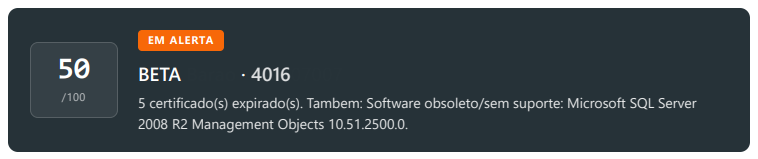
Health by Area #
The report divides the analysis into specific categories.
Areas usually assessed include:
- Operating system;
- Security;
- Storage;
- Performance;
- Network;
- Backup.
Each category receives its own rating, making it quick to see where the device’s main risks are concentrated. This segmentation makes it easier to prioritize corrective actions.

Storage Information #
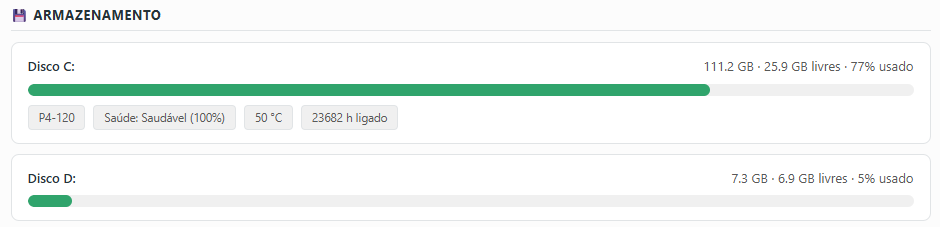
Data about the disk drives installed in the computer is presented.
The information usually shown includes:
- total capacity;
- used space;
- free space;
- disk temperature;
- power-on time;
- device model.
This data helps assess storage health and may indicate risks related to aging hardware or lack of free space.
Overall System Status #
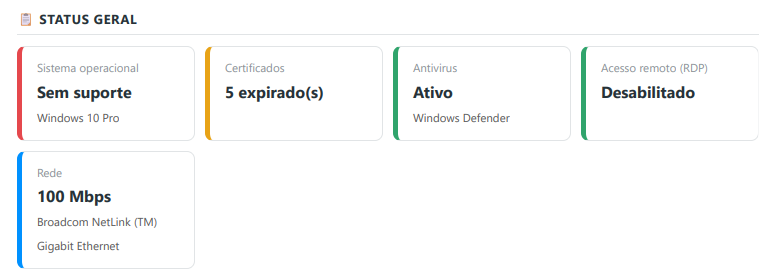
This section brings together the main components of the operating environment.
It shows information such as:
- Windows version;
- operating system support status;
- installed antivirus;
- digital certificates;
- remote access availability;
- network interface used.
This information gives a consolidated view of the computer’s current configuration.
Firewall block rules #
Shows the block rules configured in the computer’s firewall, identifying communication restrictions that may affect security, application operation or network connectivity.

Inbound allowed in the firewall (attack surface) #
Highlights ports and services reachable over the network that may increase the computer’s attack surface if they are not needed or are misconfigured.

Services and processes #
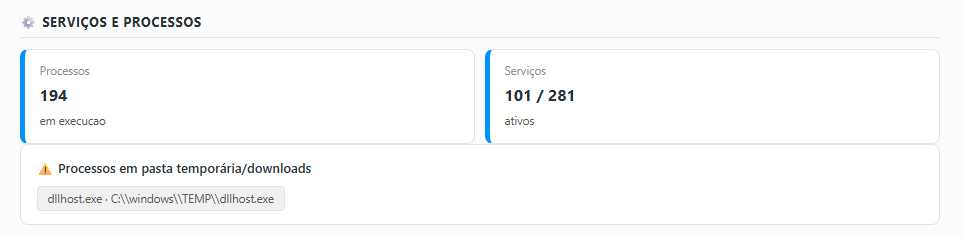
Identifies active applications, resource usage, critical system components and possible improper or suspicious processes.
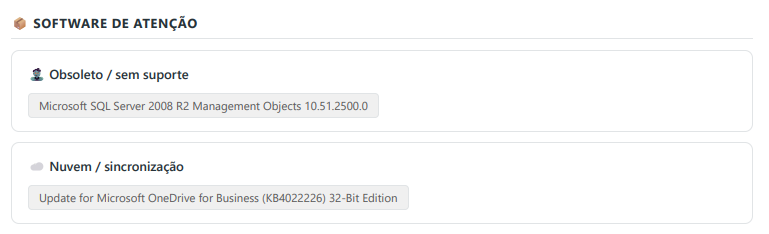
Software That Requires Attention #
Programs that may pose operational risks. The main scenarios assessed include:
- software no longer supported by the vendor;
- obsolete applications;
- components known to have vulnerabilities;
- cloud sync apps.
This software is highlighted because it may pose security, compatibility or compliance risks.
Correlations #
Shows the relationships between the events, settings and problems identified, helping you understand how different factors may be linked and contribute to the same occurrence or impact on the environment.

Classification of Findings #
Each finding is presented individually.
Four main pieces of information are shown for each item:
Description #
Objectively explains the problem found.
Examples:
- expired certificates;
- unsupported operating system;
- failing Windows service;
- obsolete software.
Criticality #
Each finding receives a priority rating.
The levels usually used are:
- Low: situations that only require monitoring or validation.
- Medium: problems that may compromise stability or security if left untreated.
- High: problems that pose a significant risk to the environment and should be fixed as a priority.
This classification lets the technical team focus first on the highest-impact problems.
Risk Assessment #
For each finding, the Artificial Intelligence provides a short technical explanation of the possible impacts.
For example:
- increased exposure to vulnerabilities;
- authentication failures;
- loss of stability;
- service interruptions;
- compliance risks.
This description helps you understand why a given problem deserves attention.
Recommended Action #
After identifying the problem, the system presents a technical recommendation.
Recommendations may include:
- updating the operating system;
- replacing obsolete software;
- renewing certificates;
- investigating Windows events;
- reviewing security settings;
- validating internal policies.
Severities and deadlines #
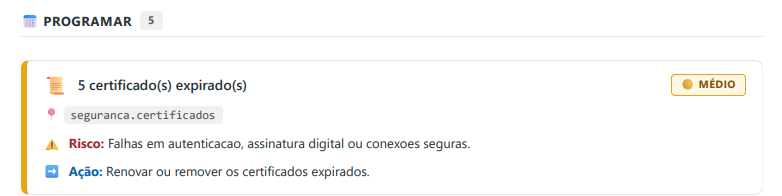
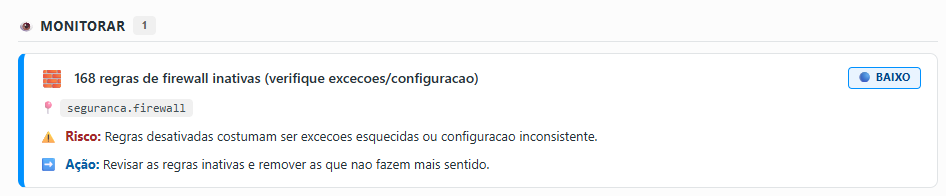
Shows the criticality rating of the problems identified and the recommended deadlines for handling them, helping prioritize corrective actions according to impact and risk.
| Severity | Color | Default deadline |
|---|---|---|
| Critical | 🔴 red | immediate |
| High | 🟠 orange | schedule |
| Medium | 🟡 amber | schedule |
| Low | 🔵 blue | monitor |
| Positive | 🟢 green | — |
| Blind spot | ⚪ gray | — |
The recommendations serve as initial guidance and should be evaluated by the responsible team before being carried out.
Examples:
Windows events #
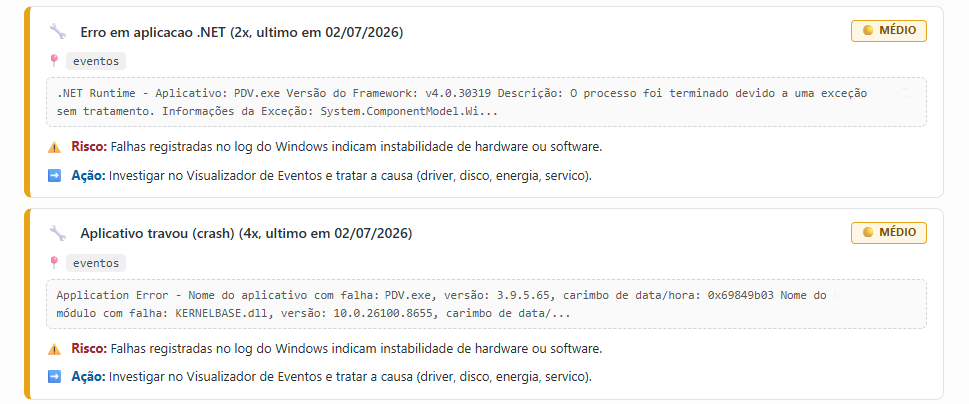
The report also interprets Event Viewer records.
Recurring failures in services, drivers or system components may indicate:
- hardware problems;
- software conflicts;
- startup failures;
- service unavailability;
- degraded device stability.
Automated analysis highlights only the events considered relevant, reducing the need to manually inspect large volumes of records.
Positive Points #
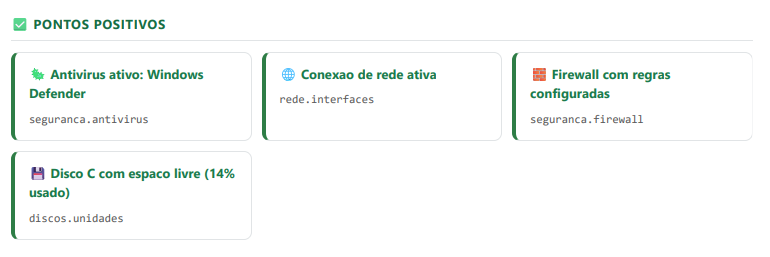
Besides the problems found, the report identifies settings considered adequate.
These may include:
- active antivirus;
- configured firewall;
- working network;
- enough disk space;
- other items that follow best practices.
This approach gives a balanced view of the device’s health, showing both risks and compliance.
Smart routing #
Shows the communication route automatically selected by the system to connect the remote computer and Master Control, using the most efficient path suited to network conditions.

Blind Spots #
In certain situations, data collection may not provide all the information needed for a complete analysis.
In these cases, the report explicitly states which elements could not be assessed.
Examples:
- missing Windows logs;
- real-time metrics unavailable;
- inability to validate certain components.
This transparency avoids incorrect interpretations and lets the technical team understand the limits of the analysis.
Benefits of the Intelligence #
Limitations of the Analysis #
Although the report can identify a wide variety of situations, it does not replace the technical assessment carried out by specialized professionals.
The accuracy of the analysis depends directly on the quality and completeness of the data collected. Unavailable information, access restrictions on the operating system or missing records may limit the ability to identify some problems.
In addition, the recommendations presented are guidance only and should be evaluated according to the operational context, security policies and specifics of each environment.
In other words… #
The AI Smart Analysis Report is a support tool for managing IT infrastructure, automatically consolidating technical information into a structured, objective and prioritized diagnosis.
By turning data collected from the device into practical recommendations, the report reduces the time needed to identify problems, makes decision-making easier and helps increase the security, stability and availability of computing environments.
Using it periodically lets you identify trends, anticipate failures and take preventive action, making IT asset management more efficient and based on reliable information.
Print or export #
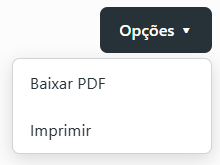
To make it easier to manage and share information, the system offers a quick export feature. In the upper-right part of the screen, you will find the output tools button. With it, you can print the document directly or export the report to PDF.
Privacy and Compliance Guidelines #
To ensure compliance with the LGPD (Brazil’s General Data Protection Law) when using AI diagnostic reports, the following contractual and technical safeguards apply:
- Minimization and Limited Purpose: the AI analyzes only technical and operational data (telemetry, error logs, memory status and network performance). The feature was designed strictly to extract IT patterns; behavior tracking or the collection of sensitive personal data is not allowed. This ensures an accurate analysis without any invasive access to passwords, private credentials or individual user accounts, preserving full confidentiality.
- Algorithm: for IT diagnostics, telemetry and log analysis, we use predictive models and machine learning algorithms developed in-house. These models are calibrated specifically to identify hardware anomalies, network failures and operating system error patterns, without going through commercial LLMs (language models).
- Supervised Decision-Making: the AI acts strictly as an advisory assistant to the technical team. There are no automated actions or decisions; the final say on any intervention or fix belongs to a human operator, mitigating risks and complying with Art. 20 of the LGPD.
- Security and Business Confidentiality: the diagnostic data is processed in isolated, encrypted environments. No data is used to train third-party public AI models.
- Location: this information is handled without any international data transfer.
Try Master Remote free for 7 days. Professional remote access with 7 integrated tools. Download Master Control →
Enjoyed the article? Check out what’s new on our WEBSITE, share the article with your friends and follow Master Remote on LinkedIn, YouTube, Instagram and Facebook. Also, explore other articles on the side and stay up to date with the latest news on customer support technology and cybersecurity.
YOU MAY ALSO BE INTERESTED IN: