 Central de Ajuda


Microsoft Defender SmartScreen is a Windows 11 security feature that helps identify potentially dangerous apps, files, websites and downloads.
In some situations, however, SmartScreen can prevent a legitimate program from running or installing, especially when the app is little known, has low reputation or does not provide enough information for Windows to determine whether it is trustworthy.
That is when many users search for “how to turn off SmartScreen in Windows 11”.
In this article, you will see where to find this setting, which types of protection are related to SmartScreen and, above all, what to consider before turning it off.
What is SmartScreen in Windows 11? #
Microsoft Defender SmartScreen is a protection layer built into Windows.
It uses reputation information to help identify:
- potentially dangerous apps;
- suspicious files;
- potentially malicious downloads;
- websites considered dangerous;
- apps with little or no known reputation.
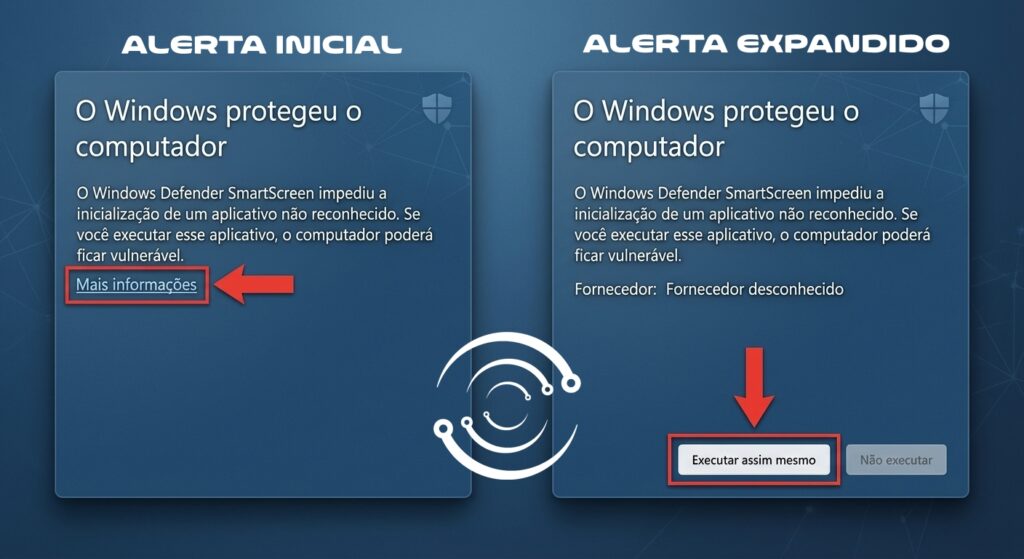
When Windows cannot safely determine that a file is trustworthy, it may show a warning or prevent it from running.
A common message is:
“Windows protected your PC.”
Depending on the situation, messages related to blocking the app may also appear.
Are SmartScreen and Windows Defender the same thing? #
No. This is a very common question.
Microsoft Defender Antivirus is mainly responsible for the system’s antimalware protection. SmartScreen, on the other hand, uses reputation mechanisms to help identify potentially dangerous files, apps, websites and downloads. They work together but have different functions.
So turning off SmartScreen does not mean turning off Microsoft Defender Antivirus. Likewise, turning off Defender is not necessarily a solution for a block caused by SmartScreen.
How to turn off SmartScreen in Windows 11 #
If you need to change this setting, the main path is in Windows Security.
Step 1 — Open Windows Security #
Press:
Windows + S
Type:
Windows Security
Open the app.
Step 2 — Go to App & browser control #
In Windows Security, select:
App & browser control
This area contains the settings related to reputation-based protection and app control.
Step 3 — Open reputation-based protection #
Look for:
Reputation-based protection
Open this option to see the available settings.
Depending on the Windows 11 version and the policies applied to the computer, the interface and the number of options available may vary.
Step 4 — Find the SmartScreen-related options #
The settings may include protection for different types of content, such as:
- apps and files;
- Microsoft Edge;
- potentially unwanted apps;
- downloads;
- Microsoft Store.
Turn off only the protection needed for the test you are doing.
It is not recommended to turn off all options indiscriminately.
What happens after turning off SmartScreen? #
When you turn off a SmartScreen protection, Windows stops performing that reputation check.
This may allow an app or file that was being blocked to run.
On the other hand, the computer now has one less layer of protection.
So, if the goal is to install or run a specific program, a good practice is to:
- confirm the program is legitimate;
- check where it came from;
- check its digital signature;
- perform the installation or test;
- restore the protection afterwards, when possible.
SmartScreen is blocking a legitimate program. Do I need to turn it off? #
Not always. Before turning off SmartScreen, check whether there is a safer alternative.
1. Download the program again #
Get the installer directly from the manufacturer’s official website. A corrupted or altered file may behave differently from the original installer.
2. Look for a newer version #
The manufacturer may have released a version with compatibility improvements or a digital signature.
3. Check the digital signature #
Right-click the file and select:
Properties → Digital Signatures
Check that the signature is valid and belongs to the expected publisher.
4. Check the file in Microsoft Defender #
Open: Windows Security → Virus & threat protection → Protection history
See whether there is any detection related to the program.
5. Confirm the source #
If the file came from an unknown source, do not turn off SmartScreen just to run the program.
How to solve “Windows protected your PC” without turning off SmartScreen #
In certain situations, Windows shows the message:
“Windows protected your PC.”
This warning can appear when SmartScreen does not recognize the app or considers its reputation insufficient.
Before changing security settings:
- confirm where the file came from;
- check the publisher;
- check the digital signature;
- confirm whether there is a newer official version;
- scan the file for security.
If all these points are considered trustworthy, assess whether you need to allow it to run.
Do not use this procedure to bypass warnings about files from unknown sources.
SmartScreen vs Smart App Control #
Another important point is not to confuse SmartScreen with Smart App Control. Both are part of Windows 11 protection, but they are different mechanisms. Smart App Control can prevent certain untrusted apps from running. Its settings can be found in:
Windows Security → App & browser control → Smart App Control
So, if turning off or changing SmartScreen does not solve the problem, another security mechanism may be causing the block.
SmartScreen vs User Account Control (UAC) #
UAC is also often confused with SmartScreen. User Account Control appears when an app needs elevated privileges to make certain changes to the system. For example, when running an installer as administrator, Windows may ask for authorization. This is different from a reputation block by SmartScreen.
So:
UAC = privilege control
SmartScreen = reputation-based protection
They are different mechanisms.
How do you know whether SmartScreen is really causing the block? #
If you are troubleshooting a technical problem, do not change several settings at once.
Diagnose it.
1. Identify the message #
Write down exactly what appears on the screen.
2. Identify the file #
Check the name and location of the executable.
3. Check the signature #
Confirm whether the file has a valid digital signature.
4. Check the protection history #
See whether Defender recorded any detection.
5. Check the reputation settings #
Review the SmartScreen options.
6. Test again #
After a specific change, check whether the behavior changed.
This approach lets you identify the cause without turning off several security mechanisms at the same time.
How to turn SmartScreen back on in Windows 11 #
After finishing the test or installation, it is recommended to restore the protection.
The path is:
Windows Security → App & browser control → Reputation-based protection
Turn back on the options that were turned off. This restores the corresponding reputation checks to Windows.
Can I leave SmartScreen turned off permanently? #
Technically, certain settings can stay off, depending on the Windows edition and the policies applied. However, it is not recommended to do so without an operational reason.
SmartScreen exists precisely to reduce the risk of running potentially dangerous content. If a single program is causing problems, it is better to investigate that specific app than to permanently remove a layer of protection from the whole system.
What about company computers? #
In corporate environments, the situation may be different. SmartScreen settings may be controlled by administrative policies. In this case, the user may find options locked, unavailable or reverting automatically to their previous state.
This can happen when the company uses:
- group policies;
- centralized management;
- Microsoft Intune;
- security policies;
- endpoint management solutions.
If the computer belongs to an organization, it is not recommended to try to bypass a corporate policy locally. The IT administrator should evaluate the app and set the appropriate policy.
Why can SmartScreen block a program that is safe? #
A program can be legitimate and still lack enough reputation for SmartScreen. This can happen, for example, with:
- new software;
- apps with limited distribution;
- programs developed for a very specific audience;
- internal company tools;
- software without a digital signature;
- newly released versions;
- little-known installers.
So “not recognized by SmartScreen” does not mean “virus”. At the same time, it does not mean the program is automatically safe either. The file’s origin and integrity need to be checked.
What to do when many computers show the same block? #
If the same program is being blocked on several computers, simply turning off SmartScreen machine by machine is not efficient.
In this scenario, investigate:
- which version of the program is installed;
- whether all computers received the same update;
- whether the installer has a digital signature;
- whether the behavior occurs on different Windows versions;
- whether a corporate policy is involved;
- whether the antivirus is recording any detection;
- whether the manufacturer has an updated version.
In environments with many devices, the ideal is to identify the cause just once and establish a standardized procedure.
Quick diagnosis #
If Windows 11 is blocking a program, follow this sequence:
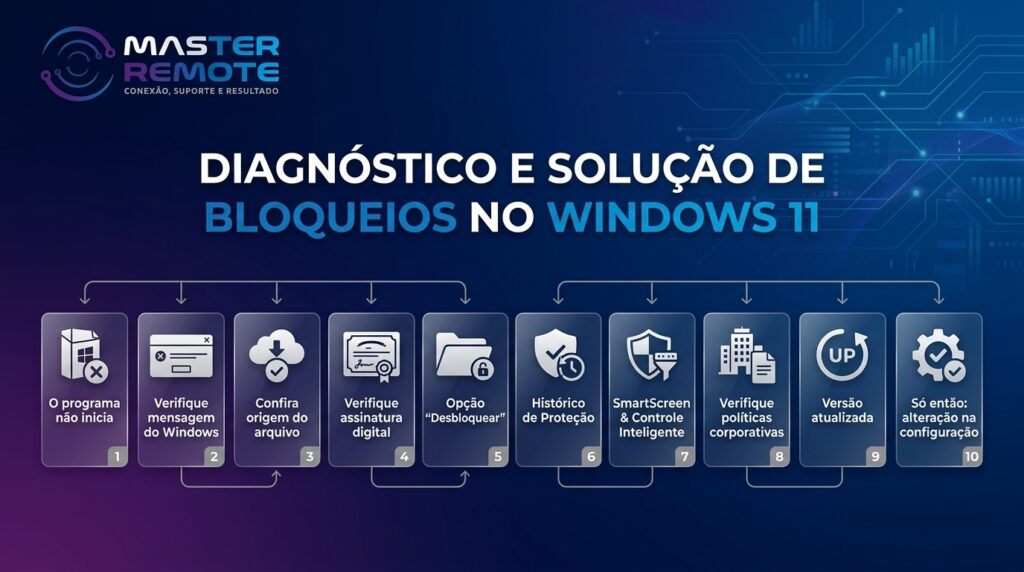
This sequence reduces the risk of solving a compatibility problem by creating a security vulnerability.
Remote access can make this kind of diagnosis easier #
When the computer is at another branch, in another city or in the hands of a user without technical knowledge, investigating this kind of problem can take a lot of time.
With a remote access tool such as Master Control, the technician can access the computer and check directly:
- the message shown by Windows;
- the file properties;
- the digital signature;
- the Protection history;
- the security settings;
- the policies applied;
- how the app behaves after the change.
This allows the diagnosis to be done without traveling to the device. For support teams that manage many computers, this kind of access also makes it possible to standardize procedures and reduce the time needed to solve Windows 11 problems.
In short… #
SmartScreen is an important Windows 11 security layer, but it can occasionally interfere with running legitimate software. Before turning it off, confirm the program’s origin, check its digital signature, review the Protection history and determine whether the block is really caused by SmartScreen.
When the change is needed for a specific test or installation, turn off only the feature needed and, afterwards, turn the protection back on. In corporate environments, it is also important to check whether the behavior is caused by a centralized policy. The goal should not be simply to make the program work, but to find a solution that lets it run without unnecessarily compromising Windows 11 security.
Keywords: “how to turn off SmartScreen in Windows 11”, “disable SmartScreen Windows 11 permanently”, “how to remove SmartScreen from Windows 11”, “Windows 11 blocking program”, “Windows protected your PC” and “SmartScreen blocking app”.
Try Master Remote free for 7 days. Professional remote access with 7 integrated tools. Download Master Control →
⚠️ Was this article helpful? – If this article did not answer your question or you found outdated information, contact us through the support channels available in the apps, through our Support Center on WhatsApp or by phone: +55 17 2786-0640, option 4, or through your Customer Area.
⚠️ Images and data in this content are for illustration only. The appearance and information may vary depending on the version used.
Enjoyed the article? Check out what’s new on our WEBSITE, share the article with your friends and follow Master Remote on LinkedIn, YouTube, Instagram and Facebook. Also, explore other articles on the side and stay up to date with the latest news on customer support technology and cybersecurity.
YOU MAY ALSO BE INTERESTED IN: