 Central de Ajuda


Master Remote Backup was designed to protect the files essential to recovering devices, such as documents, settings, databases and other critical data, integrated with remote access and environment management.
For this reason, the service has a storage quota per license, which should be used in a planned way, prioritizing the data really needed for recovery and business continuity.
How backup space works #
See HERE how the storage space provided for Backup works.
Before changing a routine, we also recommend checking:
- HERE — alert types and complete list.
- HERE — how to check the Backup metrics.
- HERE — diagnosing failures in Backup routines.
How to reduce the stored volume #
When Backup space is being used up quickly, the first step should be to review the configured routines, how often they run, the selected files and the number of versions kept.
Below are some of the main situations that can unnecessarily increase storage usage.
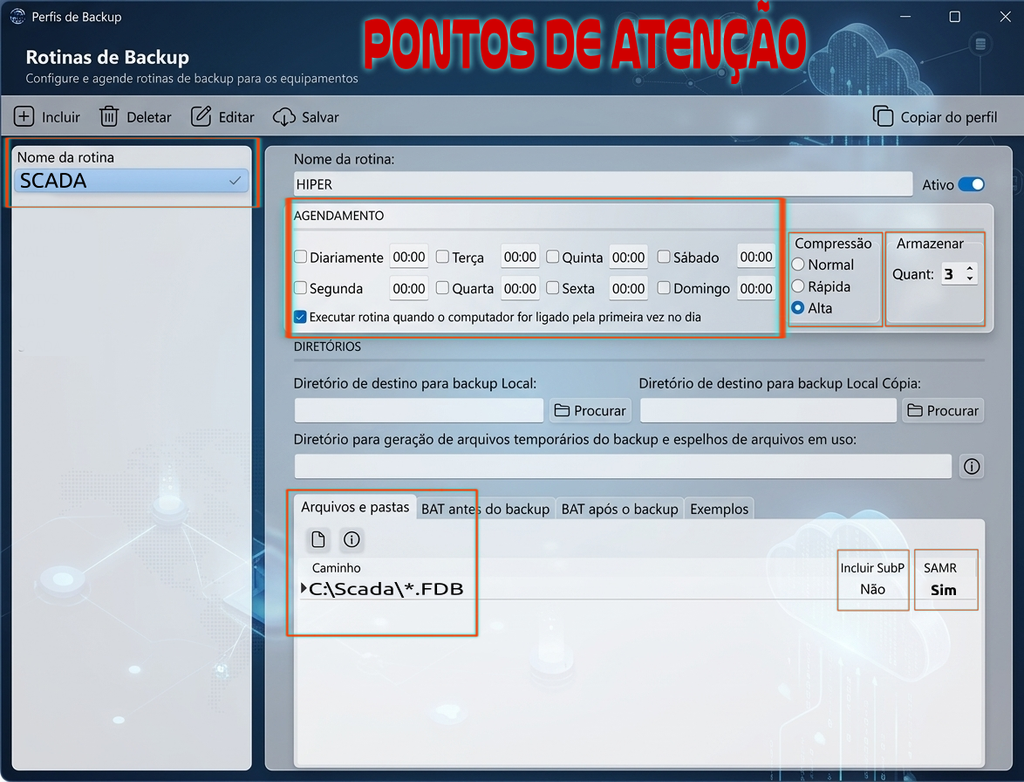
1. Review the number of schedules #
Check how many times the routine is scheduled to run.
For example, the same routine may be set to run:
- when the device is turned on;
- daily at a certain time;
- on certain days of the week;
- and at yet another additional time.
The more often it runs, the more data may be stored, especially when files change or when new copies are kept by the routine.
Check whether all schedules are really necessary and reduce the frequency when possible.
2. Check for duplicate routines #
Besides reviewing a routine’s schedules, check whether there are two or more different routines copying the same files or folders.
This can happen even when the routines have different names.
For example:
- Routine 1 — Database Backup;
- Routine 2 — System Backup;
- Routine 3 — Server Backup.
If all three routines copy the same folder or the same databases, the same data may be stored more than once.
Compare the folders and files selected in each routine and remove unnecessary duplicates.
3. Choose the right compression level #
When you configure a backup routine in Master Remote, you set the compression level applied to the files. There are three options:
- High: produces the smallest backup files. It requires a bit more processing and time while the routine runs.
- Normal: balances final size and processing time.
- Fast: finishes the backup in less time, but produces larger files and uses more storage space.
To reduce the space used and stay within the 30 GB quota per license, the recommended option is high compression. In most scenarios, the extra processing time is small compared with the storage savings, especially in routines scheduled for times when the device is less used.
Fast compression only makes sense when run time matters more than space, for example on devices with limited resources that cannot be overloaded during business hours.
Note: files that are already compressed by nature, such as photos (JPG), videos (MP4) and ZIP or RAR files, shrink very little regardless of the level chosen. In these cases, the real space gain comes from reviewing what is included in the routine, not from compression.
4. Do not back up files you do not need #
Backup should prioritize the data needed to recover the environment.
Avoid indiscriminately including folders that usually do not need protection, such as:
- temporary files;
- Downloads folders;
- installers;
- cache files;
- update files;
- old log files, when not needed;
- personal media;
- work files that can be recovered from another source;
- folders used only for temporary storage.
The larger the set of selected files, the greater the potential storage usage.
Before adding a folder to the routine, ask: “Does this file really need to be available if this device has to be recovered?”
5. Be careful with wildcard characters (wildcards) #
Wildcard characters can make selecting files easier, but they can also make the routine include far more files than originally intended.
The main wildcards are:
- * — represents a sequence of characters.
- ? — usually represents a single character.
- *.* — generally represents files with any name and extension.
For example, a broad selection such as: *.*
Can include practically every file in the selected location. In folders with many files, this can result in a backup volume far larger than necessary.
Whenever possible, be specific when selecting files.
For example:
- *.FDB → selects files with the .FDB extension, such as Firebird databases.
- base.sql → selects specifically the base.sql file.
The more specific the selection, the more control you have over what is actually stored.
6. Use SAMR when only the latest version is needed #
When the goal is to keep only the latest version of a given file, database or data set, consider using the SAMR — Most Recent File Only option.
For example, imagine a routine that backs up a database every day.
If all versions are kept, storage may accumulate:
- Monday’s database;
- Tuesday’s database;
- Wednesday’s database;
- Thursday’s database;
- Friday’s database;
- and so on.
When you only need to keep the latest version available for recovery, SAMR can avoid unnecessary accumulation of these versions.
Important: whether to use SAMR should be assessed according to the company’s recovery strategy. If you need to recover a specific earlier version, keeping only the most recent file may not meet that need.
7. Review copy retention #
Check how long previous versions of files are being kept.
Excessively long retention can make storage accumulate many old versions, especially for files that change frequently.
For example, a database that changes daily can generate many versions over time.
Set a retention policy that matches the company’s real recovery needs, avoiding keeping copies indefinitely when they no longer have any operational use.
8. Identify files that change frequently #
Files that are constantly modified can significantly contribute to the growth of storage used.
Databases, documents being edited, system files and other data that change frequently should be analyzed individually.
Ask:
- Does this file really need to be copied on every run?
- Do all versions need to be kept?
- Is the backup frequency appropriate for the importance of the data?
- Is there another way to recover this content?
9. Avoid selecting very broad folders #
Whenever possible, select specific subfolders or files instead of a root folder containing many types of content.
For example, instead of selecting:
C:\Dados\
check whether you can select directly:
C:\Dados\Banco\
or:
C:\Dados\Documentos\
This reduces the risk of including files that are not part of the backup strategy.
10. Use the SUBFOLDERS option only when necessary. #
When it is on, the routine copies the contents of all subfolders below the given path, including old backups, logs, temporary files and other data that does not need to go to the cloud.
Since each run sends everything again, the stored volume grows quickly and may exceed the contracted allowance. If the file is always in the same subfolder, the ideal is to point the path directly to it (for example,
C:\sistema\backup\diario\*.FDB) and keep SUBFOLDERS set to NO.
Reserve the option for cases where the files really are spread across several subfolders or in subfolders whose name changes on every run, such as folders created by date.
Whenever possible, combine SUBFOLDERS with an extension filter (*.FDB, *.backup) instead of *.*, to limit the copy to what matters.
11. Review routines periodically #
A company’s needs change.
A routine created two years ago may be copying files that are no longer used, or may have received new schedules and added folders over time.
That is why we recommend a periodic review of backup routines, checking:
- selected files;
- selected folders;
- schedule frequency;
- retention;
- number of versions;
- use of SAMR;
- duplicate routines;
- growth of the stored volume.
12. Check the metrics before changing the routine #
Before and after making changes, check the backup metrics to see the impact of the changes.
This lets you identify which routines, devices or file sets are contributing to storage usage and make decisions based on real data.
See HERE how to check the Backup metrics.
In short… #
To make better use of the Backup quota, prioritize what really needs to be recovered.
Before increasing storage, review:
- Schedules → Duplicate routines → Selected folders → Selected files → Wildcards → SAMR → Retention → How often files change.
Reducing usage should not be done simply by deleting data. The goal is to eliminate unnecessary copies and keep a backup strategy suited to the company’s recovery needs.
Important: reducing the stored volume does not mean indiscriminately reducing protection. Before removing files, shortening retention or keeping only the latest version, make sure the configuration still meets the company’s data recovery policy.
Try Master Remote free for 7 days. Professional remote access with 7 integrated tools. Download Master Control →
⚠️ Was this article helpful? – If this article did not answer your question or you found outdated information, contact us through the support channels available in the apps, through our Support Center on WhatsApp or by phone: +55 17 2786-0640, option 4, or through your Customer Area.
⚠️ Images and data in this content are for illustration only. The appearance and information may vary depending on the version used.
Enjoyed the article? Check out what’s new on our WEBSITE, share the article with your friends and follow Master Remote on LinkedIn, YouTube, Instagram and Facebook. Also, explore other articles on the side and stay up to date with the latest news on customer support technology and cybersecurity.
YOU MAY ALSO BE INTERESTED IN: