 Central de Ajuda


Diagnosing failures and common errors in backup routines
Backup is one of the main mechanisms for keeping a company’s information secure and available. Even so, several factors can prevent a routine from completing successfully, and many of them originate in the configuration itself.
This article brings together the most common mistakes when creating backup routines and the main causes of failure, organized by the stage where the problem occurs. Knowing these causes makes diagnosis easier and reduces the time needed to restore data protection.
For further reading, see the list of backup alerts.
1. Routine configuration errors #
1.1 Incomplete or incorrect path #
This is the most common mistake. The routine needs the folder path and the specification of the files to be copied. Entering only the folder is not enough.
Before saving the routine, check that:
- the path exists and is typed correctly;
- the drive (disk) is available;
- the folder has not been renamed or moved;
- the user running the backup has permission to access the location.
Examples
| Situation | Path |
|---|---|
| Incorrect | C:\sistema\backup |
| Correct | C:\sistema\backup\base.FDB |
| Correct | C:\sistema\backup\base.* |
| Correct | C:\sistema\backup\*.FDB |
| Correct | C:\sistema\backup\*.backup |
| Correct | C:\sistema\backup\*.* |
How to use wildcard characters (*)
The asterisk defines which files in the folder are included in the copy.
| Goal | Specification |
|---|---|
| Copy a specific file | base.FDB |
| Copy all files with the .FDB extension | *.FDB |
| Copy all files with the .backup extension | *.backup |
| Copy all files with the .XML extension | *.XML |
| Copy all files in the folder | *.* |
- Use *.* when you need to protect all the content of the folder.
- Use *.extension when you want to restrict the backup to one file type, reducing the stored volume and focusing on what matters.
Important: wildcards only filter files in the folder specified. To include files in subfolders, see item 1.2.
See in this video how to copy the path correctly and easily, and here which drive letters are compatible with backup.
1.2 Subfolders not included #
In some cases, the file to be copied is in a subfolder, or there are files spread across several subfolders while the main folder is empty. If the routine is not set to process subfolders, nothing will be copied.
In these cases, set the SUBFOLDERS option to YES.
1.3 No files in the specified path #
Even with the correct path, the backup fails if there are no files to process. This happens when the folder was emptied, the files were moved or the application that generates the data stopped producing it.
Use the file transfer tool to confirm that the content specified in the routine actually exists.
1.4 Trying to copy an open database #
With many databases, you cannot copy the database directly while it is in use (connected to a system or application). The reasons are technical:
- File locking: the database management system (DBMS) locks the files to prevent corruption, stopping other processes from copying or changing them.
- Data consistency: copying an open database may capture only part of the information or records in an intermediate state.
- Transactions in progress: transactions not yet committed (commit/rollback) may be copied incorrectly.
- Integrity and security: many DBMSs block direct access to their files while in use, ensuring that only the database itself handles the data.
The correct practice is to generate the backup with the database’s own export tool (such as mysqldump, pg_dump, mongodump or the native backups of SQL Server and Oracle) and set the routine to send the already generated backup file to the cloud.
Extensions of the main databases
| Database | Main extension / files | Note |
|---|---|---|
| Microsoft Access | .mdb, .accdb | Cannot be copied while open in Access. |
| SQLite | .sqlite, .db, .sqlite3 | Single file; locked while in use. |
| MySQL/MariaDB | .ibd, .frm, .myd, .myi | Internal files; copy only via dump. |
| PostgreSQL | .dat (internal files) | Not accessed directly; back up via pg_dump. |
| Oracle Database | .dbf (datafile), .ctl (control file), .log | Critical files; cannot be copied while in use. |
| SQL Server | .mdf (datafile), .ldf (log file) | Locked while the database is active. |
| MongoDB | collection-*.wt, mongod.lock, journal files | Use the WiredTiger storage engine; copy only via mongodump or snapshots. |
Alternative: stop the service during the copy
Another option is to include scripts in the backup routine: the first temporarily stops the database service, ensuring there are no transactions in progress; then the backup runs; finally, another script restarts the database.
Warning: these scripts must be written and configured by a professional specialized in the database in question. Any failure can compromise data integrity or system availability.
Example for SQL Server:
@echo off
REM Script to stop, copy and restart SQL Server
REM 1. Stop the service
net stop MSSQLSERVER
REM 2. Copy the data files
xcopy “C:\Program Files\Microsoft SQL Server\MSSQL15.MSSQLSERVER\MSSQL\DATA\*.mdf” “D:\BackupSQL\” /Y
xcopy “C:\Program Files\Microsoft SQL Server\MSSQL15.MSSQLSERVER\MSSQL\DATA\*.ldf” “D:\BackupSQL\” /Y
REM 3. Restart the service
net start MSSQLSERVER
2. Retention and storage usage #
2.1 Retention not suited to the operation #
The number of copies kept should reflect business needs. More copies do not always mean more security.
In most scenarios, the more recent the backup, the greater its value, because it reduces information loss and allows you to resume activities with less impact. A very old copy is missing days, weeks or months of transactions and is rarely useful for an operational recovery.
That is why keeping, for example, 90 daily copies rarely brings practical benefit: it uses a lot of storage, can exceed the quota and most of those copies will never be used. The ideal is a balanced retention policy, without unnecessary copies.
2.2 Several run times in the same routine #
When setting, for example, 7 copies, the intention is usually to have a week of history available. A common mistake is registering two or more run times in the same routine.
The routine accepts three types of schedule:
- 5 minutes after the computer is turned on;
- daily, at a specific time;
- on specific days and times.
Each run creates a copy. If the routine keeps 7 copies but is set to run 5 minutes after startup, daily at 3:00 PM and every day at 12:00 PM, there will be 3 copies per day. The 7 copies are used up in just over 2 days, drastically reducing the period covered by the backup.
2.3 Duplicate content #
When the routine keeps, for example, 7 copies in the cloud, the system automatically preserves the last seven versions of the backup. With daily runs, that is about a week of history.
Duplication occurs when the source folder holds, besides the latest file, the backups from previous days, and the routine is set to send all the files in that folder. Each new run resends old versions that are already preserved by retention. The same content is stored several times, greatly increasing space usage without adding any new version.
Solution: set the routine to copy the Most Recent File Only (SAMR), choosing YES in the SAMR option. This way:
- history is still kept by cloud retention;
- old versions are no longer resent;
- storage usage drops significantly;
- the level of security and availability for restore stays the same.
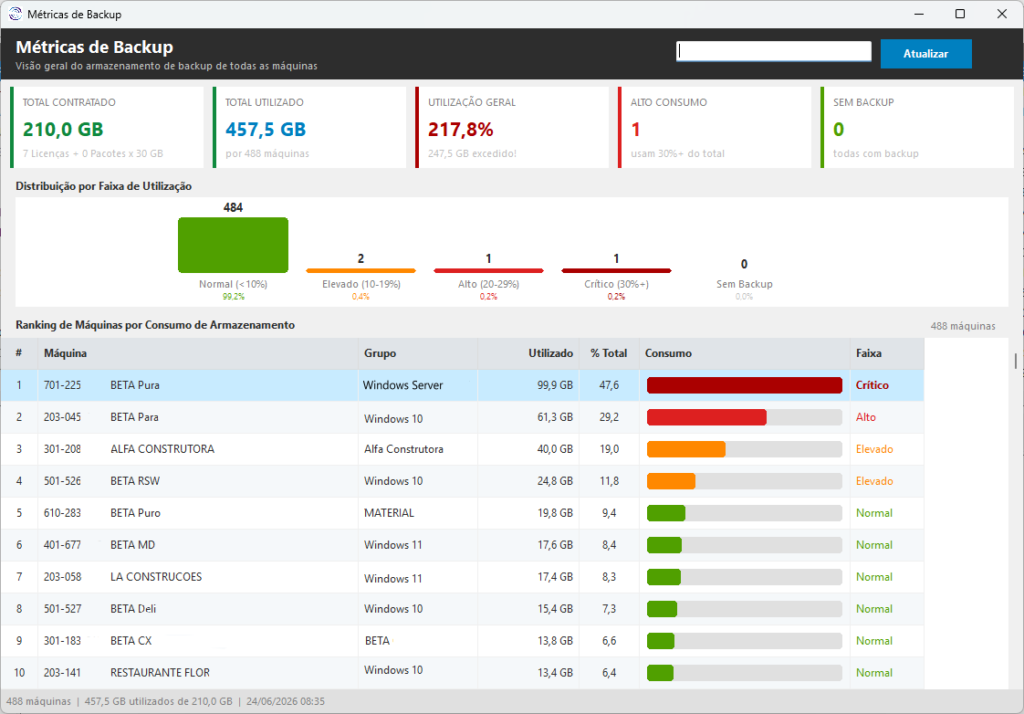
2.4 Not tracking backup metrics #
Not tracking the metrics is not a configuration error, but it lets the environment drift from what was planned without anyone noticing.
Changes to routines, new directories, growth in data volume or changes in how backups are generated gradually increase usage. Without monitoring, routines may start using more space than expected, exceeding the contracted allowance or requiring a strategy review.
Track the storage metrics regularly and review the routines whenever the environment changes. See how to use the feature in Backup Metrics.
3. Communication problems #
After finding the files, the agent needs to send them to the backup server. Any interruption at this stage can prevent the task from completing.
3.1 The agent could not connect to any server #
This is usually related to no internet or blocks by a firewall, antivirus, proxy or DNS. Check the machine’s connectivity, test name resolution and confirm that the ports used by the system are open.
- List of ports and IPs that must be allowed in the firewall
- How to configure Windows Defender exclusions
- Configuring other cybersecurity tools
3.2 The agent was interrupted while sending #
Shutdowns, restarts, power outages or the backup service being stopped interrupt the transmission before it finishes. In these cases, the routine needs to run again.
The most frequent situation is a backup scheduled for the end of the workday, with the computer being shut down before the routine finishes.
How to diagnose it in Master Control:
- In Area 7 (Information), open the Backup section and check the average run time of the routines already executed.
- Still in Area 7, open the Activity section and identify the time the device is usually turned off.
- Compare this data with the scheduled time. If the device is turned off before the routine ends, reschedule it for a period when the computer stays on throughout the process.
Recommendation: in most cases, the best option is to run the routine when the computer is first turned on each day.
3.3 The agent had connection problems #
Unstable connections cause packet loss, slowness and interruptions. Even with internet access, network fluctuations can prevent the backup from finishing. Check connection stability and monitor communication losses between the workstation and the server.
3.4 The file reached the server corrupted #
In rarer situations, the file is altered during transmission and fails the integrity check when it reaches the server. The backup is discarded to avoid storing inconsistent data, and the routine needs to run again.
4. Execution problems #
Some failures happen while the backup is being processed, before transmission.
4.1 The agent was interrupted while running scripts #
Many routines run scripts before or after the backup, for example to close applications, export databases or prepare files. If the script errors out, waits for user interaction or exceeds the expected time, the backup may be interrupted.
Always validate scripts manually in CMD before using them in an automated routine.
4.2 The backup file is corrupted or empty #
If the file generated by the application is corrupted, incomplete or empty, or if the disk has physical failures, processing may stop for lack of valid data. Identify the source of the problem in how the file is generated before trying a new backup.
Important: the Master Control backup routine does not validate the logical integrity of file contents. A corrupted file that is accessible and has a valid structure for the file system will be copied normally. Content validation depends on the application that generated it or on restore tests. That is why you should run periodic restore tests and validate the recovered files.
4.3 The agent was interrupted during compression #
Compression requires processing, memory and temporary disk space. If any of these resources runs out, or if the operating system is interrupted, the process may end before it finishes.
5. Interference from other software #
Security applications, system restriction tools, programs that block Windows updates and banking protection software can alter the system’s normal operation, restrict file access, block connections or prevent essential services from running, partially or completely compromising the backup.
To block Windows updates, these programs usually:
- disable the Windows Update services;
- change group policies;
- block scheduled tasks;
- modify firewall rules or the hosts file;
- disable related services, such as Background Intelligent Transfer Service (BITS) and Volume Shadow Copy.
This causes side effects in other programs, especially those that depend on Windows components.
Warsaw: read the specific article about Warsaw.
StopUpdates: if the computer has StopUpdates installed, it may have been used to block updates or to prevent license validation. In some cases, the last update was years ago and the operating system is no longer compatible with current programming libraries. Keeping the operating system up to date is a basic requirement for the stability of all programs, including backup.
In these cases, check:
- which Windows services were disabled;
- whether BITS is running;
- whether the Volume Shadow Copy service is running;
- whether the Windows Task Scheduler is enabled;
- whether there are firewall rules created by StopUpdates;
- whether the necessary ports and IPs are allowed in the firewall;
- whether the problem goes away when temporarily restoring the original settings changed by StopUpdates.
6. Best practices #
Not every failure can be avoided, but these measures greatly reduce problems:
- Resolve all backup alerts immediately. Accumulated alerts can mean lost customer data.
- Review the routine configuration whenever an alert appears, to make sure it is still valid.
- Keep the operating system up to date. The Master Remote agent updates automatically, but Windows has its own updates.
- Tell customers and employees not to shut down or restart the computer while the routine is running.
- Run periodic restore tests to confirm that backups are intact and usable.
- Keep free disk space for temporary files and compression.
- Validate scripts in the terminal before using them in production.
- Track storage metrics and review routines when the environment changes.
Adopting these practices increases the reliability of routines, reduces operational failures and ensures data is available when it is really needed.
- See also the types and complete list of Master Control alerts.
- You can visually track overuse in BACKUP METRICS.
- Click HERE to see the article that explains the feature.
- See HERE the alert types and the complete list.
Try Master Remote free for 7 days. Professional remote access with 7 integrated tools. Download Master Control →
Enjoyed the article? Check out what’s new on our WEBSITE, share the article with your friends and follow Master Remote on LinkedIn, YouTube, Instagram and Facebook. Also, explore other articles on the side and stay up to date with the latest news on customer support technology and cybersecurity.
YOU MAY ALSO BE INTERESTED IN: