 Central de Ajuda


User Account Control (UAC) is a Windows feature that helps protect the system against unwanted or malicious changes by requiring confirmation for actions that may affect how the computer works.
However, many end users struggle with the frequent confirmation windows that ask for permission to perform an action or even for the administrator password, especially when they do not have those privileges. In these cases, it may be convenient to turn it off. Below, see how to do it in Windows 10 and Windows 11.
Turning off UAC in Windows 10: #
- First, open the Control Panel. You can do this by typing “Control Panel” in the Start menu search bar.
- In the Control Panel, select User Accounts.
- Then click User Accounts again.
- Now choose the Change User Account Control settings option.
- A slider will appear. To turn off UAC completely, drag the slider to Never notify.
- Click OK to confirm the changes.
Remember that turning off UAC completely may reduce your system’s security, as you will no longer be notified before important actions are performed. So consider carefully whether this is the best option for you.
Turning off UAC in Windows 11: #
- In the Windows 11 Start menu, search for Control Panel and open it.
- In the Control Panel, click System and Security.
- Now click the Change User Account Control settings link.
- Slide the vertical bar to Never notify.
- Press the OK button to confirm.
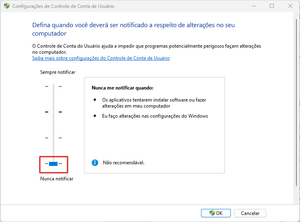
Remember that UAC offers different security permission levels. The default is to always notify when changes occur, which is recommended for software installations and visits to unknown websites.
Try Master Remote free for 7 days. Professional remote access with 7 integrated tools. Download Master Control →
⚠️ Was this article helpful? – If this article did not answer your question or you found outdated information, contact us through the support channels available in the apps, through our Support Center on WhatsApp or by phone: +55 17 2786-0640, option 4, or through your Customer Area.
⚠️ Images and data in this content are for illustration only. The appearance and information may vary depending on the version used.
Enjoyed the article? Check out what’s new on our WEBSITE, share the article with your friends and follow Master Remote on LinkedIn, YouTube, Instagram and Facebook. Also, explore other articles on the side and stay up to date with the latest news on customer support technology and cybersecurity.
YOU MAY ALSO BE INTERESTED IN: